Go Live
Go Live broadcasts the night itself: the live stack building sub by sub, a telemetry lower third with target, frame count, integration, filter, and guiding, and an optional all-sky view with a marker showing exactly where the telescope is pointing. Pick a saved destination — YouTube, Twitch, or any custom RTMP ingest — and the rig computer encodes and pushes the broadcast itself.
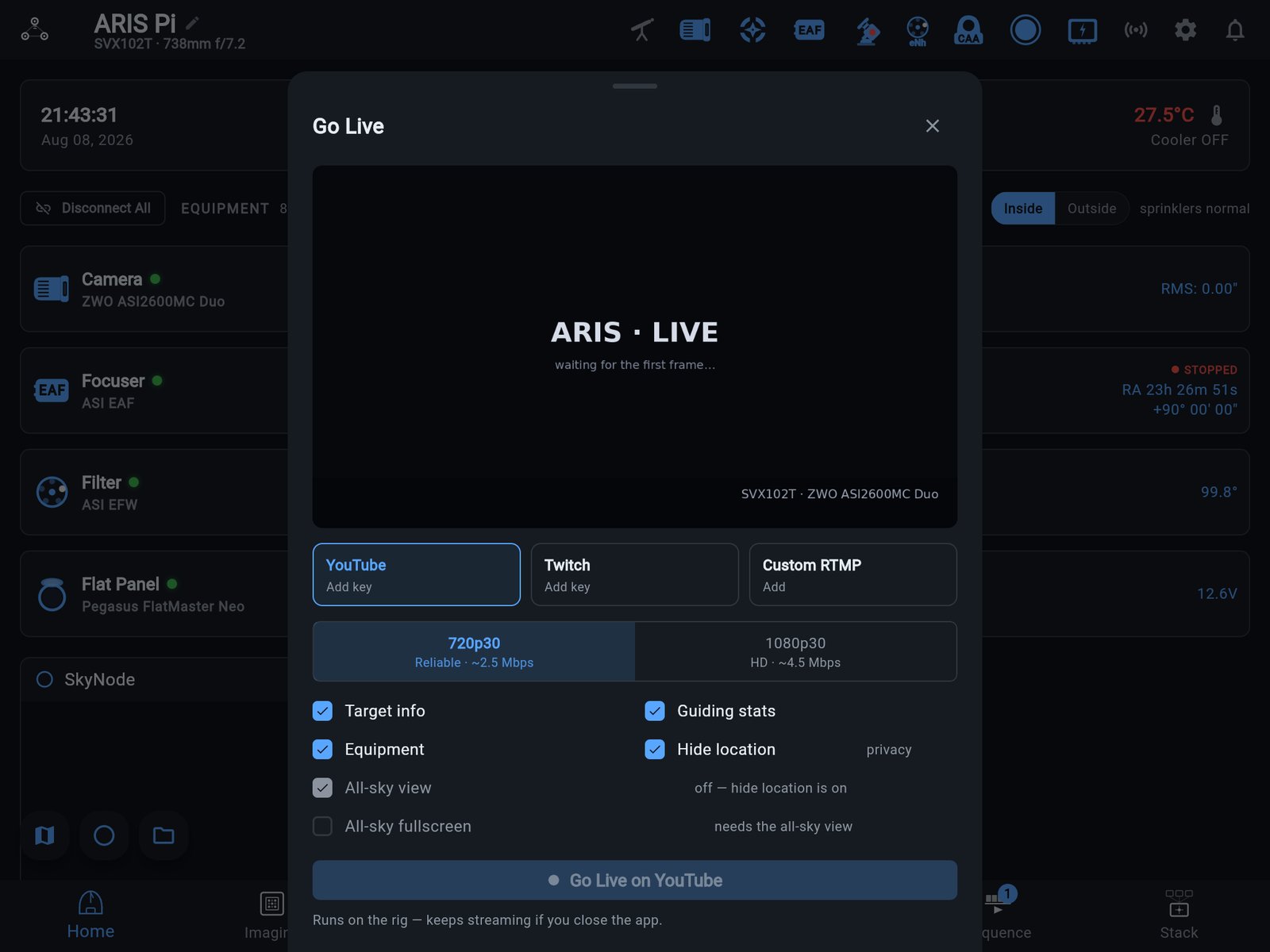
The rig owns the broadcast
Section titled “The rig owns the broadcast”Like a running sequence, the stream belongs to the rig, not to the device that started it:
- Start it from any device — tablet, phone, browser — then close the tab, lock the phone, walk away. The broadcast keeps running.
- Stop it from any device. Stop is never gated: whoever reaches the rig can end the stream, which matters when the device that started it is asleep in the house.
- A global LIVE pill appears in the app on every screen, on every connected device, whenever the rig is broadcasting — you always know you’re on the air.
Saved destinations
Section titled “Saved destinations”Destinations are saved on the rig, so any device can start a stream to them. Three kinds:
- YouTube — paste the stream key from YouTube Studio. The default (persistent) key works night after night; with YouTube’s own Auto-start/Auto-stop enabled on that key, the broadcast goes live the moment the rig starts pushing.
- Twitch — paste the stream key from your Twitch dashboard. Note that Twitch keeps VODs off by default; enable them in Twitch settings if you want the night recorded.
- Custom RTMP — any other ingest: paste the full RTMP/RTMPS URL and key.
Stream keys are treated as secrets. The key is stored on the rig, never shown back in full — once saved, the field displays only its last few characters — and it never appears in stream status or logs. When editing a destination, leaving the key field blank keeps the stored key.
Channel handle and the watch link
Section titled “Channel handle and the watch link”A YouTube or Twitch destination can also carry your channel handle — the @name from your channel URL. Unlike the key, the handle is public; it’s what lets ARIS show a real, copyable watch link while you’re live (youtube.com/@yourname/live or twitch.tv/yourname) so you can hand the stream to family with one tap. Destinations saved before adding a handle have an Add your channel handle for a share link action in the sheet.
What the stream shows
Section titled “What the stream shows”The rig composites the scene itself, and the in-app preview renders through the same compositor — what you preview is what viewers get:
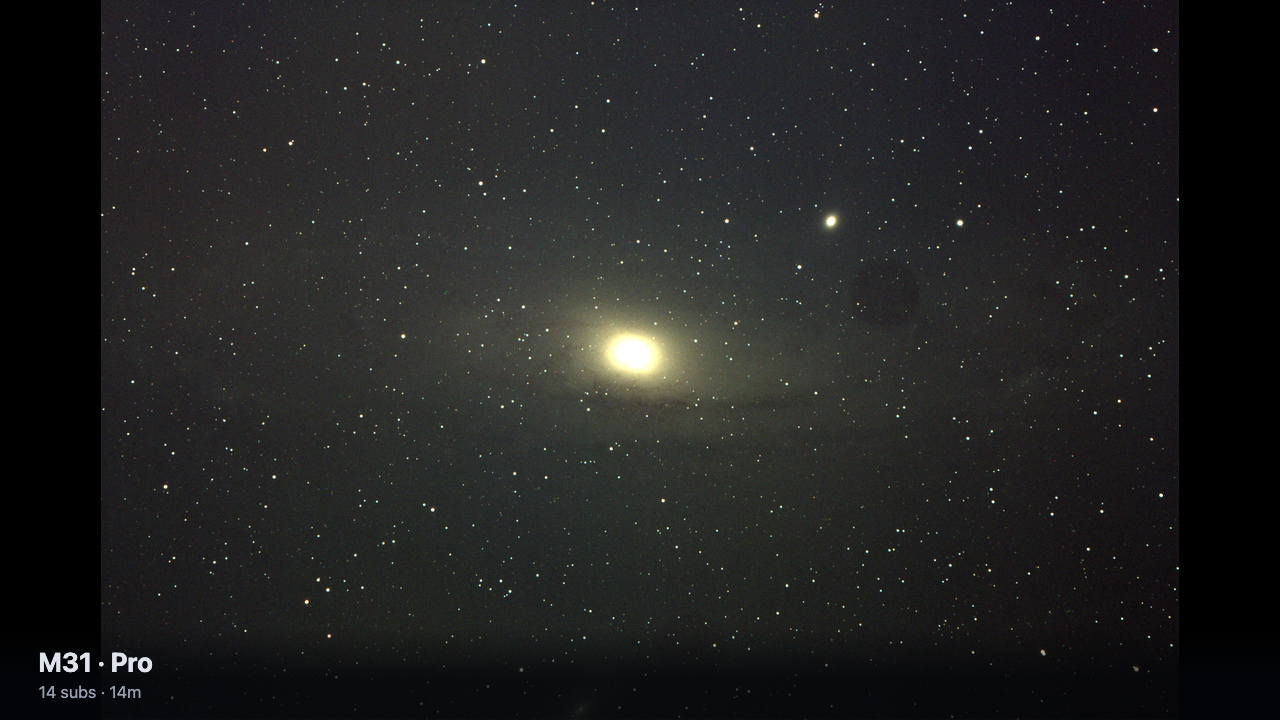
- The picture is the live stack as it builds. With no stack armed, the latest camera frame is shown; with no frames at all, a branded standby card — so the stream is never a black rectangle.
- The lower third carries the target name, sub count and exposure, total integration, active filter, and guiding RMS, with an optional equipment line.
- Overlay toggles stay editable while live — turn the telemetry, equipment line, or all-sky view on and off mid-broadcast without restarting the stream.
The all-sky picture-in-picture
Section titled “The all-sky picture-in-picture”With a SkyNode all-sky camera on the site, the scene can include the live fisheye as a disc in the corner — complete with the rig’s own pointing marker, the same honest field-of-view footprint the SkyNode screen draws, so viewers see where on the whole sky the telescope is aimed.
An operator swap flips which view is full-screen, live: the all-sky becomes the picture (the whole sky, horizon included) and the telescope view tucks into a corner inset — then swaps back, all without restarting the broadcast.
Privacy
Section titled “Privacy”Location is hidden by default, and that toggle outranks everything else: no site name or coordinates are ever drawn on the stream, and while location is hidden the all-sky picture-in-picture does not draw either — the all-sky camera is never even asked for a frame. A fisheye of your own horizon is a stronger location signature than a coordinates line, so one toggle suppresses both.
OBS and Streamlabs
Section titled “OBS and Streamlabs”If you already stream with OBS or Streamlabs — your own webcam, mic, and scene — ARIS plugs into that instead. The rig serves two chromeless pages made for Browser Source capture:
- Telemetry overlay (
http://<rig-name>.local:8080/live/overlay) — a transparent-background lower third, for compositing over your own scene with real alpha: live target, frame, and guiding chips floating on your capture. - Live view (
http://<rig-name>.local:8080/live/stack) — the whole ARIS picture as a single source: the live stack (or latest frame) with that same lower third already drawn on it, plus the all-sky inset if the scene carries one. It’s the composed scene a viewer of an ARIS-run broadcast sees.
-
In ARIS, open the Go Live sheet (or the OBS card in Settings) and copy one of the two URLs — the overlay if OBS owns your scene, the live view if you want the whole ARIS picture.
-
In OBS or Streamlabs, add a Browser source and paste the URL. Set the source size to match your canvas.
-
Arrange it in your scene. The pages reconnect on their own, so a dropped rig connection heals without you toggling the source.
No install, no plugin, no account — the pages are served by the rig on your local network, so OBS must run on the same network as the rig.
Quality
Section titled “Quality”Troubleshooting
Section titled “Troubleshooting”The stream won’t start
- First stream on a YouTube channel? YouTube requires a phone-verified channel and imposes a one-time activation wait (up to 24 hours) after you first enable live streaming. Until that clears, the ingest rejects the key — nothing ARIS can do but wait it out.
- Check the key. Re-copy the stream key from YouTube Studio or the Twitch dashboard and paste it into the destination again — an expired or regenerated key fails the RTMP handshake.
- Already live? A rig runs one broadcast at a time. Stop the current stream (from any device) before starting another.
- Older rig install? The streaming encoder ships with current rig software. If the sheet reports the encoder missing, update the rig — see Installation.
The platform shows the stream offline
The destination decides when a healthy ingest becomes a public broadcast. On YouTube without Auto-start, you must click Go Live in YouTube Studio; with Auto-start enabled on the key, it happens by itself. The ARIS LIVE pill reports that the rig is pushing — the platform’s dashboard reports what viewers see.
Requirements
Section titled “Requirements”- An ARIS rig computer (Raspberry Pi or GPU-accelerated rig) on current rig software. A NINA rig broadcasts only through the ARIS backend that the plug-in starts beside NINA, which the plug-in download does not include yet (see NINA Integration). Smart telescopes don’t broadcast yet.
- A destination with its stream key. The all-sky picture-in-picture additionally needs a SkyNode camera on the site.